


Core Web Vitals (CWV) are a set of metrics anyone who manages a website needs to monitor, especially during the development stages of a website.
They help you monitor your site’s performance in terms of user experience, and they’ve even become a new set of metrics SEOs optimize in hopes of ranking higher on Google.
In this article, I explain what CWVs are, why they’re important and how to improve them.
What are Core Web Vitals? A Summary
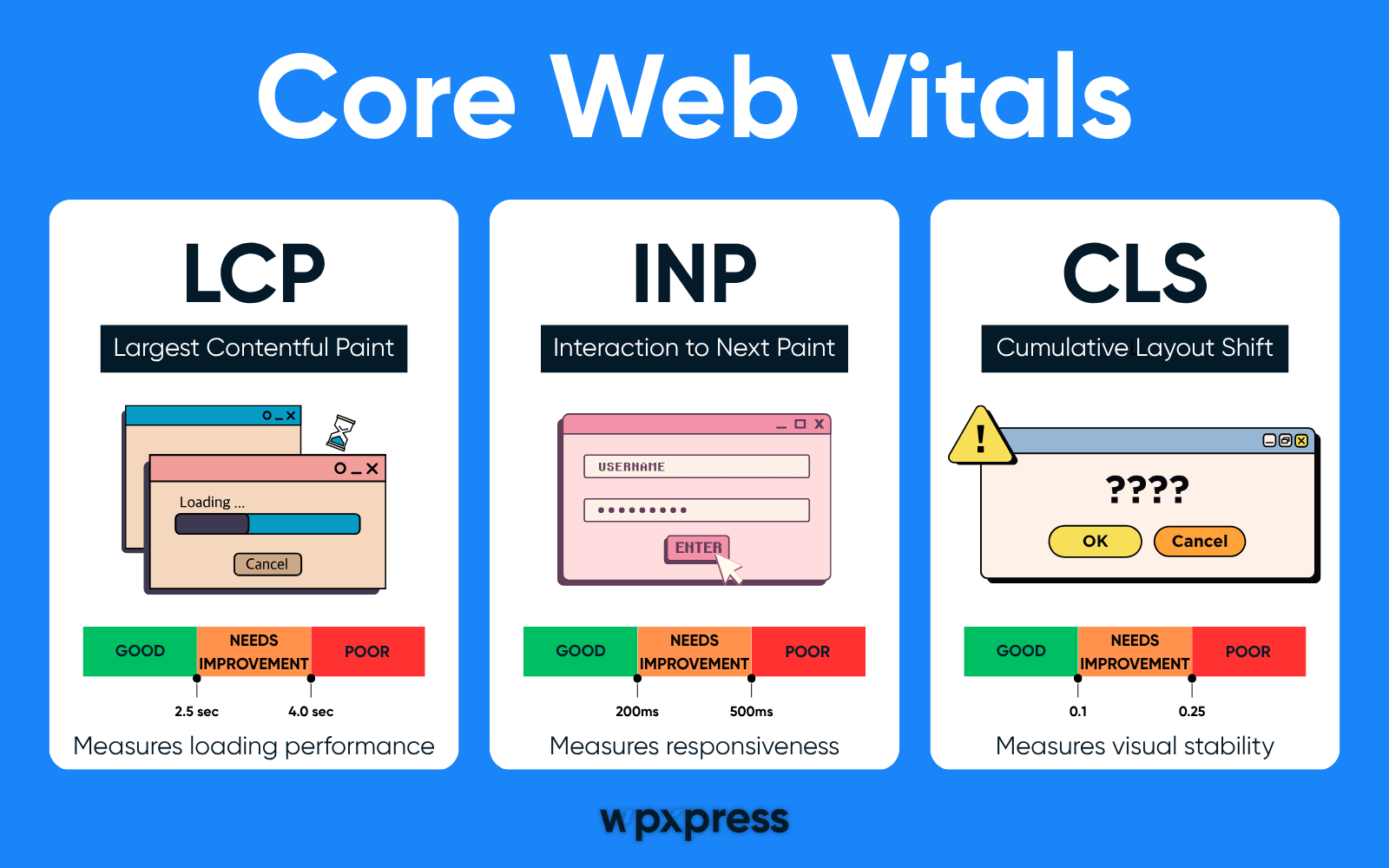
Core Web Vitals are a set of metrics created by Google that measure a site’s user experience (UX).
Google created them as a way to give webmasters additional metrics that indicate how slow or fast certain processes perform on a web page.
This helps webmasters determine exactly what needs to be tweaked on their websites in order to improve performance in a way that makes sites feel faster.
These are Google’s Core Web Vitals metrics:
- Largest Contentful Paint (LCP) – Measures loading performance. Google recommends aiming for an LCP score of 2.5 seconds or less
- Interaction to Next Paint (INP) – Measures how quickly your web page responds to user input. Google says to aim for an INP score of 200 milliseconds or less
- Cumulative Layout Shift (CLS) – Measures visual stability, which is a fancy way of saying it measures how much different elements on your page shift throughout the loading process. Google recommends aiming for a CLS score of 0.1 or less
Other Metrics
Here are other metrics you’ll find when you test your site with PageSpeed Insights:
- First Contentful Paint (FCP) – Measures loading performance, specifically the amount of time that passes between when the user first landed on the site to when the first element on the page loaded in the viewport. Google recommends aiming for an FCP score that’s at least below 3.0s but ideally below 1.8s
- Total Blocking Time (TBT) – “Measures the amount of time after FCP where the main thread was blocked long enough to prevent input responsiveness.” Google says TBT should be less than 50s
- Speed Index – How long it took for the page to be usable
These are metrics you’ll find in similar speed test tools:
- Time to First Byte (TTFB) – How long it took for content on the page to start downloading
- Start Render – How long it took for pixels to start to appear
- Page Weight – The size of a web page in bytes
Why are Core Web Vitals Important?
Core Web Vitals are important because they measure the performance of specific processes that relate to your site’s UX.
Site speed tools let you know how fast or slow it takes your site to load. CWVs tell you exactly how fast or slow specific processes on your site take to complete.
This makes troubleshooting bottlenecks and other issues much easier.
It also makes it easier to identify UX issues that don’t relate to site speed at all, such as CLS.
It can be pretty annoying from the user’s perspective when different elements on a page shift while the page loads. The user will have whatever content they’re trying to read in their viewport only for that content to get pushed further down the page as other elements load.
Similarly, it can be annoying when a button the user wants to click is inaccessible for a short period because of CLS and other issues.
In short, CWVs help you optimize the performance of your site in a way that makes it a much more enjoyable place to browse.
How Do Core Web Vitals Relate to SEO?
Core Web Vitals are part of Google’s Page Experience signals, which are a ranking factor. This makes CWVs very important for SEO.
It also means having a high-performing website can improve rankings.
Google wants to provide the best results it can produce for its user base, so it’s not likely to rank websites that perform poorly from the user’s perspective.
However, it’s important to remember that Google has around 200 factors it considers when ranking websites, so performance alone won’t help you rank any higher. It just helps you make your site more competitive.
Even so, optimizing your CWVs should be a priority when you’re trying to improve your SEO, and they should be just as much of a priority when you’re trying to increase your conversions.
Related: Think Beyond Metrics: The Power of a Sustainable SEO Strategy
How to Check Your Site’s Core Web Vitals
The best way to check your site’s CWVs is by opening the Core Web Vitals tab in Google Search Console (GSC).
This tab is broken up into two different graphics: one for mobile and one for desktop.
It lets you know how many URLs you have in each of the following categories:
- Poor URLs – Pages that have poor Core Web Vitals scores
- URLs Need Improvement – Pages that are mostly optimized for CWVs but still need a few tweaks
- Good URLs – Pages that have good CWVs scores
This is the easiest way to monitor the performance of every page on your website.
If you need to optimize a specific page or don’t receive enough traffic to have data in this tab, use PageSpeed Insights from Google instead.

Like GSC, this tool provides two different scores for the mobile and desktop versions of your page.
Your overall Core Web Vitals score is provided in the Performance metric in PageSpeed Insights.
You’ll also see specific metrics here.
Third-Party Tools
Use third-party tools to test your scores even further. WebPageTest is one of my favorite tools to use.

This is because it lets you select different parameters for your test, including where in the world it runs from, what type of device it uses, the type of internet connection it uses and more.
Uptrends and GTmetrix work great as well.
How to Improve Your Scores
The great thing about PageSpeed Insights or the other tools I mentioned is that they literally tell you exactly what’s causing performance issues on your site and how you can improve them.
For instance, the homepage of our sister site Starfish Reviews has a low LCP score, and PageSpeed Insights says it’s caused by an animated element in our hero section.

This means we can improve our LCP score by making this element static or by optimizing the hero section in general.
You can solve most issues with Core Web Vitals by optimizing your site for speed in general.
Here are a few ways to improve site speed:
- Using a quality web host. Preferably a cloud or VPS host
- Using a lightweight, well-coded website design
- Using a CDN
- Implementing page and server caching
- Reducing or eliminating the use of animation on your site
- Reducing your use of sliders, such as by limiting yourself to one well-designed slider per page
- Compressing images, preferably before you upload them to your site
- Reducing the number of requests on your site
- Minifying CSS and JS
- Loading JS asynchronously
- Reducing the number of ads displayed on your site or eliminating ads altogether
Like I said, if PageSpeed Insights or any of the other tools I mentioned find performance issues on your site, they should tell you exactly which files are causing problems.
Try to optimize those files if you can.
Do You Need to Hit a Perfect Score on PageSpeed?
PageSpeed Insights has four primary scores that are graded on a scale from 0 to 100.
Here’s what your score means:
- 0-49 (Red) – Poor score. Critical issues need to be addressed
- 50-89 (Orange) – Low score. Minor issues need to be addressed
- 90-100 (Green) – Good score. Little to no issues to address
A lot of website owners obsess over getting a perfect 100 score for Performance thinking it’ll help them rank better in search engines, but this is a common misconception.
While performance is important for SEO, it doesn’t affect rankings as much as other factors do. Therefore, your performance score doesn’t need to be perfect.
PageSpeed Insights and your Core Web Vitals metrics should only be used as diagnostic tools when you need to figure out why your site isn’t ranking or converting or why its UX is so poor.
They can also help you optimize your site during the development phase.
Why Your Mobile Performance Score is So Much Lower than Your Desktop Score
It’s not uncommon for your mobile performance score to be lower than your desktop performance score in PageSpeed Insights. Typically, your mobile score will be in the orange range even if your desktop score is green.
This is normal because most designs, including templates and WordPress themes, are designed for desktop first then made to be responsive so they resize to whatever screen size they’re displayed on automatically.
You shouldn’t worry about this gap for the most part. Like I said before, you should only be worried about your site’s performance if your conversions are low or your bounce rate and time on site are too high.
If you want to optimize your mobile score as much as possible, create a separate design for the mobile version of your site or use separate elements and images than the ones the desktop version of your site uses.



0 Comments